WEBSITOES: Wordpress

Netizen Basic Knowledge Site

Showing posts with label Wordpress. Show all posts

Tuesday, August 31, 2021

Success Export Xml from Wordpress to Blogger

This easiest way to export website data from wordpress for further import to blogger by using the Export to Blogger Plugin
  • Install the Export to Blogger plugin then activate it
  • Click on the plugin settings
  • Select type: post, Status: Any, Checklist Category & Tag Convert to Blogger Label, Checklist Category to Export, Just select everything.
  • Click Export XML
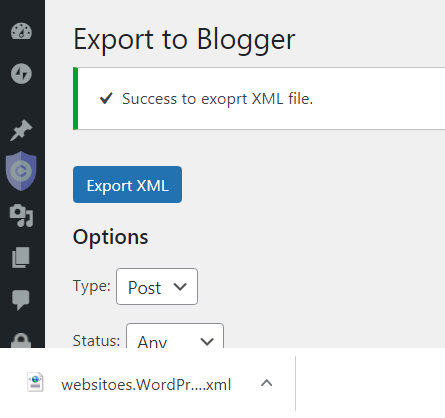
  • The end result of this way of exporting wordpress to blogger is a notification: "succes to export xml file" like this 
    succes-export-xml-wordpress-to-blogger

After your computer device downloads the xml file, in the next step you can directly import it in blogger. this very easy!

Sunday, January 3, 2021

How to Fix Problem of Difference Permalink Structure Before Step to Migrating From Blogger to Wordpress

How to Fix the Problem of Difference Permalink Structure Before Step to Migrating From Blogger to Wordpress? looking for answer this problem is the first strategy that you should think about before stepping on the stage of migration, so that all the URLs you have created on blogger don't become 404 error links.


To fix this case, the customizable object is not the blogger permalink, but wordpress. Because the blogger permalink cannot be changed, while in wordpress there are many options to choose from and can even be customized as the owner likes.

Well, choose or customize the structure to match the structure when your domain is still blogging on blogger ...

Adjusting the wordpress permalink structure with blogger is also important on new blogs that are starting to be built on wordpress, but there are plans that one day it will be moved to blogger.  So the structural equation between the two is very good if done early.

How is the blogger permalink? For example, Look at the permalink screenshots of this article on blogger!

how-to-fix-problem-difference-permalink-structure-wordpress-blogger

From the example image above you can see that the blogger permalink structure is https://www.domain.com/year/mounth/post-name-or-your-custom-post-title.

So the conclusion: there are 2 components of the blog permalink that must be equalized, namely: the use of www in the main URL, and displaying the year / month / post-name in the structure.

1). The main URL must be www

Generally the URL of the web / blog hosted on blogger is www.  Generally the URL of a web / blog hosted on wordpress is without www.  So, make it www!

This step can be done directly via the general settings menu (settings >> general) not necessarily from CPanel.

  • Change from the previous https://yourdomain.com to https://www.yourdomain.com
  • then click save.
  • After saving mode, you will be asked to log in to wordpress again by entering your email address or wordpress username and password.  of course, because the address has now changed.
  • Done.

2). Permalink must display year/month/post-name

To choose or customize the month structure and name, you can do it through the permalink settings (settings >> permalinks) on the wordpress admin dashboard.

To do this you need to : 

  • Choose one of the options or customize it directly so that later the wordpress permalink structure will be customized to be the same as blogger.  see an example image below on websitoes.com (one of my webs hosted on wordpress.org)
    Choose-One-of-the-Options-or-Customize-Wordpress-Permalink-Structure

  • then click save!
  • Done.

Both of these methods must be done before you import the back-up blog data, so that it is not 404. but it is better if you have previously changed from http to https so that structural changes occur when the blog is secure.

if you have questions about this, you can ask me at comment.... thank you!
Saturday, January 2, 2021

WP Admin Cannot Be Accessed Even Though Wordpress Has Been Installed

WP Admin Cannot Be Accessed Even Though Wordpress Has Been Installed.  What caused it?  How to fix it?

This is a problem that must be resolved immediately, so that your website can be used immediately.  Because if it can't be accessed, your wordpress website will be useless, and your money is wasted.

wp-admin-cannot-be-accessed-even-though-wordpress-has-been-installed

If WP Admin can't be accessed, most likely the cause is:

  1. You wrote the wrong URL.  errors like this are usually done by new users, because they don't know how to write the correct url.
  2. There is data in wp_config_php which is not the same as the data in MySQLDb.  This can happen if you previously changed the database, or you deleted the data without realizing that the deleted database was related to the wordpress installation account.

How to fix the 2 causes of the inaccessible WP Admin?  Using wordpress is not as simple as using blogger, where to solve this problem you must first enter the web hosting member area.  next, try to solve in 2 ways:

  1. Try typing the URL again correctly, who knows, it might just be a typo.  example of correct writing is https://yourdomain.com/wp-admin
  2. Try opening wp-config-php in CPanel >> File Manager >> Public html >> wp_config_php, who knows there is data that is different from the data in MySQLDb.  Adjust the data: Curent_Db, User_Db and Password. if you forget your password, you can create it again in MySQLDb on the same Curent Data Base and User Data Base listed in wp_config_php.  Next, you edit the wp_config_php.

Those are 2 causes of "WP Admin cannot be accessed even though wordpress has been installed" and how to fix it.